
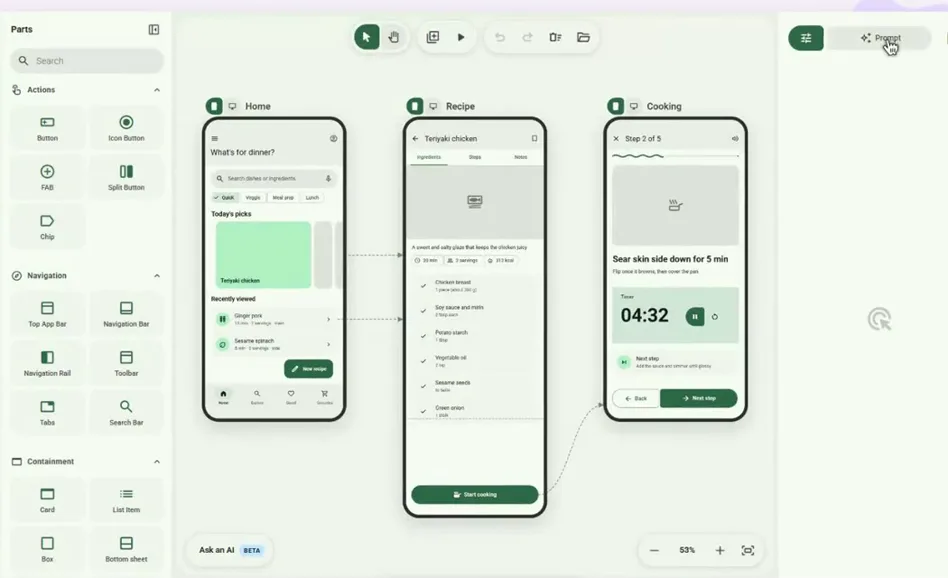
M3E Canvas is a free, open-source sketchpad for app screens. It runs in your browser, no account, no server, nothing to install. You drag ready-made parts in Google's Material 3 Expressive style onto phone or desktop screens, link the screens, tap through them like a real app, and copy a text brief (a prompt) for an AI coding tool such as Claude Code, Codex, Gemini CLI or Cursor, which then writes the app. The editor itself writes no code. The MIT license allows business use. Made by inori (GitHub account lnkiai). The interface is in English, Japanese, Chinese or Korean.
1. Open it
- In the browser on a computer: lnkiai.github.io/m3e-canvas. On a phone you get a simplified editor with one screen; the full editor is made for desktop browsers.
- Set the interface language with the Language button in the left rail. The prompt you copy later comes out in the same language.
- Nothing is uploaded anywhere. To keep your work, click the folder button in the toolbar: its two icon buttons save the project to a file and open a saved one.
2. Sketch the first screen
The Parts panel on the left lists buttons, cards, list items, app bars, tabs and more. Drag a part onto the phone screen; parts snap to a grid so they line up. The phone and desktop icons next to the screen name switch a screen between a phone and a desktop layout. Select a part and the panel on the right (Design tab) shows its text, style and size.
3. Add screens and link them
Click Add screen in the toolbar for the next screen, for example a detail page. Select the part that should open it, a button or a list item, open the Trigger tab on the right and choose that screen under Tap action. Back returns to the previous screen.
4. Tap through it
Click Preview (the play button in the toolbar). The sketch now behaves like an app: tap the linked parts and move between screens, transitions included. Back and Close sit in the small panel in the corner. Fix what feels wrong and preview again.
5. Pick the colors
Click the palette icon in the left rail (Theme and settings). Under Palettes pick one of the seven palettes, or Custom for your own seed color; Brightness switches light, dark or both. The whole sketch recolors at once.
6. Copy the prompt
Click Prompt at the top right. The panel picks the target from the screen type: a phone screen gives an Android prompt for a native app, a desktop screen a Web prompt for an app that runs in the browser; you can switch between the two. The text describes every screen, part and link. Want to add the app's name or a short brief first? Open the full-screen view with the expand button and edit the text there. Then click Copy prompt.
7. Build the app
Paste the prompt into your AI coding tool (Claude Code, Codex, Gemini CLI or Cursor) and add one line:
Build this app. Show me the plan first.
The tool writes the code and you run it; in the author's demo the result runs on an Android phone. The coding tool is a separate product: Claude Code needs a paid subscription, and the others have their own plans; M3E Canvas stays free. Never paste API keys into the chat.
Good to know
- Free: the editor needs no account. Code and license: github.com/lnkiai/m3e-canvas (MIT), made by inori (lnkiai). The README is also available in Japanese, Chinese and Korean.
- Optional Ask an AI button: drafts a design from one sentence or writes notes for parts, with your own key for OpenAI, Claude, Gemini or DeepSeek. The key is stored only in your browser and sent straight to the provider; you pay the provider for what you use. The same dialog has Copy link: a link that opens your design in the editor, without the images, so you can send the sketch to someone.
- Save as image exports a screen as a picture.
- Young project: started on Sep 2, 2026, last updated on Oct 22, 2026, no numbered releases yet, so a button may move.
Sources: M3E Canvas README, the editor's source code (lib/i18n.ts, components) and the author's demo video in the repository, checked Nov 9, 2026.
We are not affiliated with inori (lnkiai).